ScanNCut bay window card


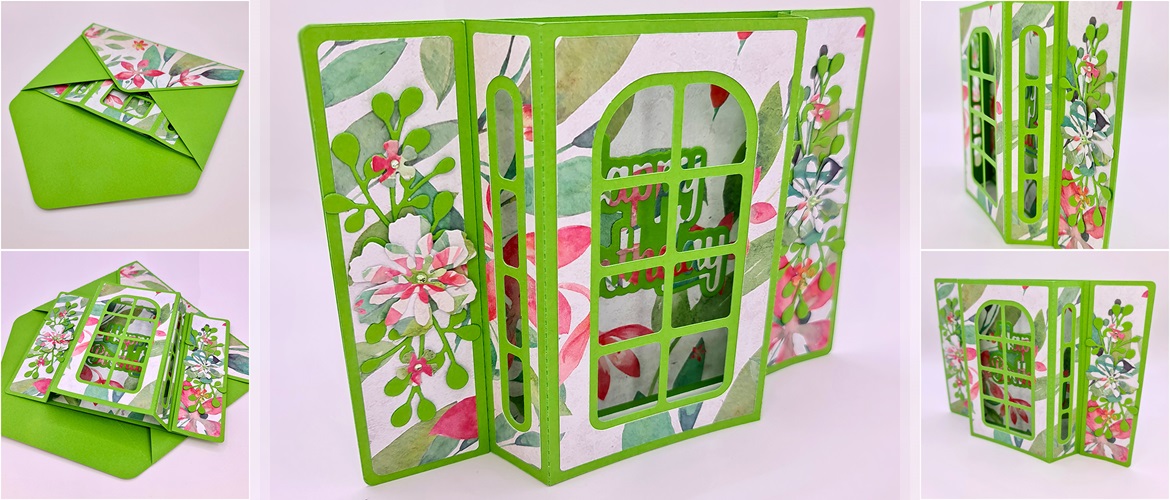
Make this truly unique style of card featuring a bay window central display area.
Use the Gentleman Crafter’s instructions to make a vibrant floral card using your ScanNCut, then embellish and decorate it with your own special message.
Best of all, this card folds flat for posting/gifting.
Size
The card measures approximately: 127mm (5”) tall by 177.8mm (7”) wide.
Materials needed
Paper/card
- 2 sheets of 12” x 12” cardstock. One for the card and one for the envelope. I recommend smooth colour-core cardstock between 180gsm / 65lb and 210gsm / 80lb. Using thicker card may make the project difficult or impossible to assemble effectively.
- 2 sheets of 12” x 12” double-sided patterned paper. I recommend lightweight scrapbook paper for the decorative panels of this project. Tip: These do not have to match as I have split the components across the two sheets so that they accentuate different parts of the design.
- Artspira app on your phone/tablet*
- Bookbinding glue or low tack/quick grab glue
- For scoring over the fold lines, I recommend a fine tipped stylus and a metal ruler.
- Assorted embellishments (optional)
Please note: the instructions below are for the basic card and envelope. You can freely embellish to your liking by adding elements such as text, 3D decals, cut outs, foiling etc. The ScanNCut has a wide range of built-in designs, fonts and applications for this purpose. Additionally, you can find thousands of extra cutting files on the Brother Artspira design app. Have fun!
Equipment needed
ScanNCut - hardware
- Brother ScanNCut – any CM Model
- Standard mat [CAMATSTD12]
- Standard blade [CABLDP1] and blade holder [CAHLP1]
OR
- Brother ScanNCut – any SDX model
- Standard mat [CADXMATSTD12]
- Standard auto-blade [CADXBLD1] and holder [CADXHLD1]
ScanNCut - software
- CanvasWorkspace for PC or Mac
*The Brother Artspira embroidery, cutting and printing design app is free to download and use for all compatible Brother wireless embroidery, cutting and craft printer machine users. However, some features of the app must be purchased via the Artspira+ subscription and may be limited dependent on resident country. See in-app for more details.
Download cutting files here
How to
Step 1
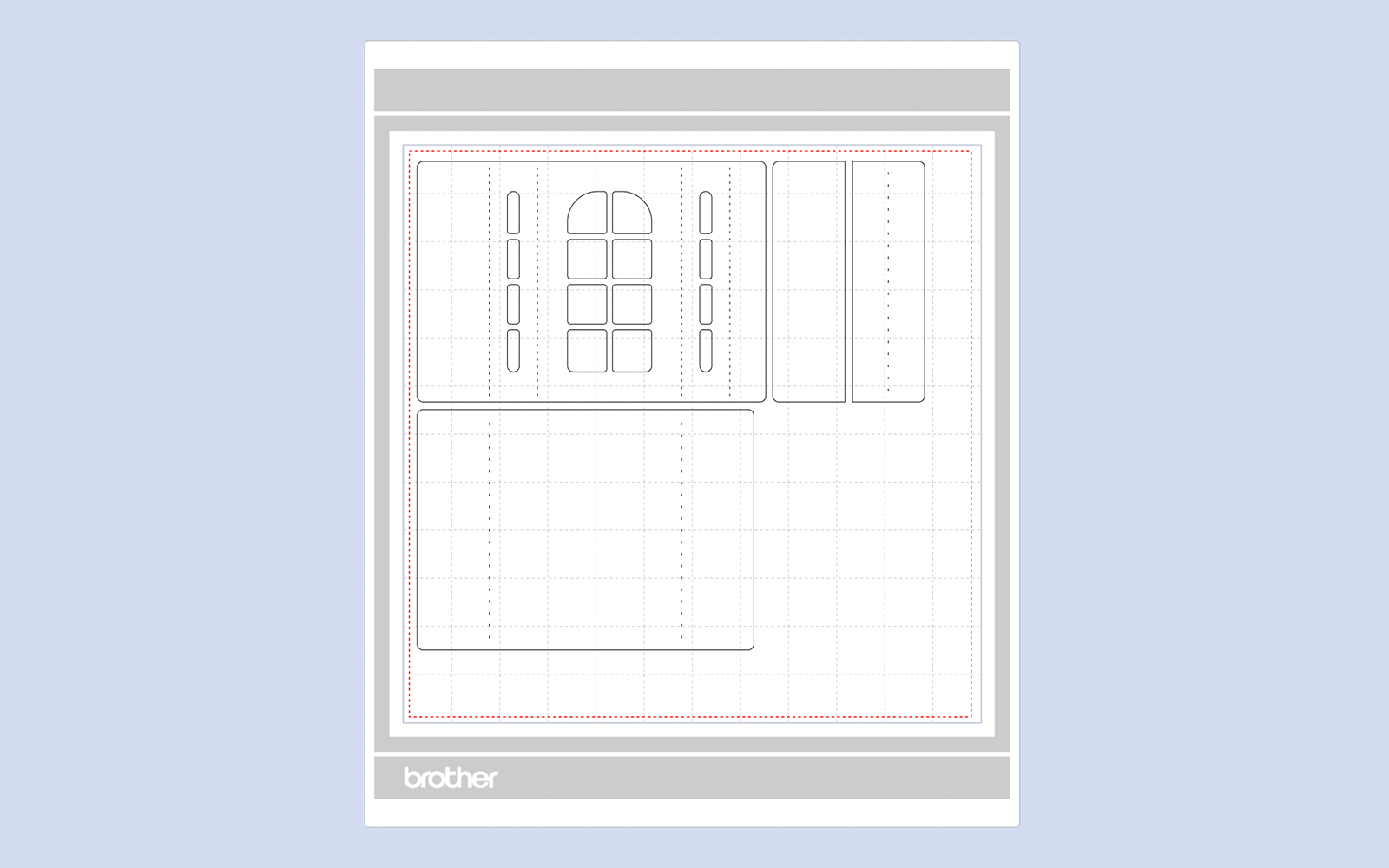
Download the CanvasWorkspace project file. Open it in CanvasWorkspace (the desktop version). Open the layers tab on the right.
Step 2
Hide and lock all layers except the one titled 1. Transfer this to your machine using the File>Export/Transfer FCM File menu option. Cut once from 12 x 12” cardstock.
Step 3
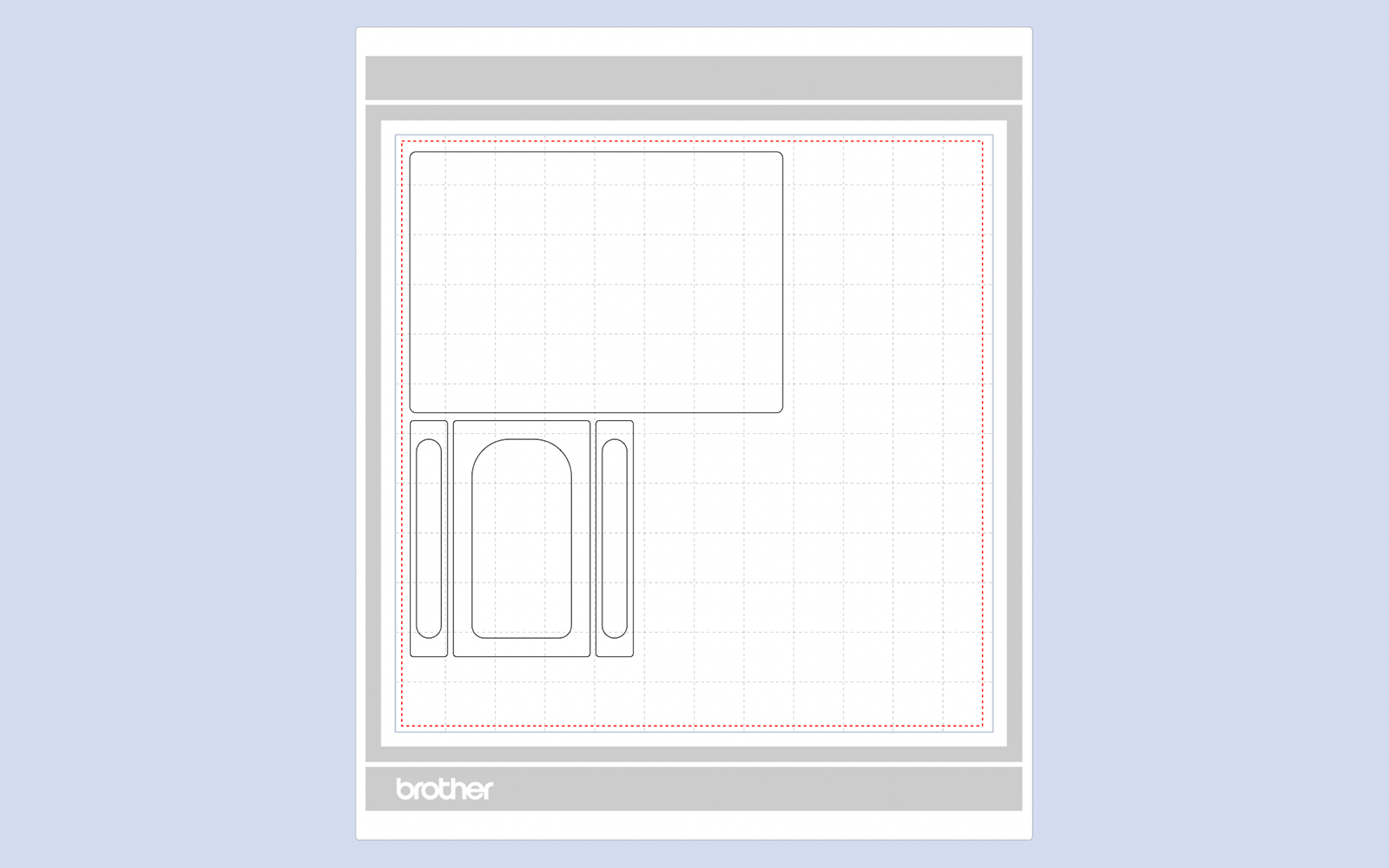
Hide and lock all layers except the one titled 2. Transfer this to your machine using the File>Export/Transfer FCM File menu option. Cut once from 12 x 12” cardstock.
Step 4
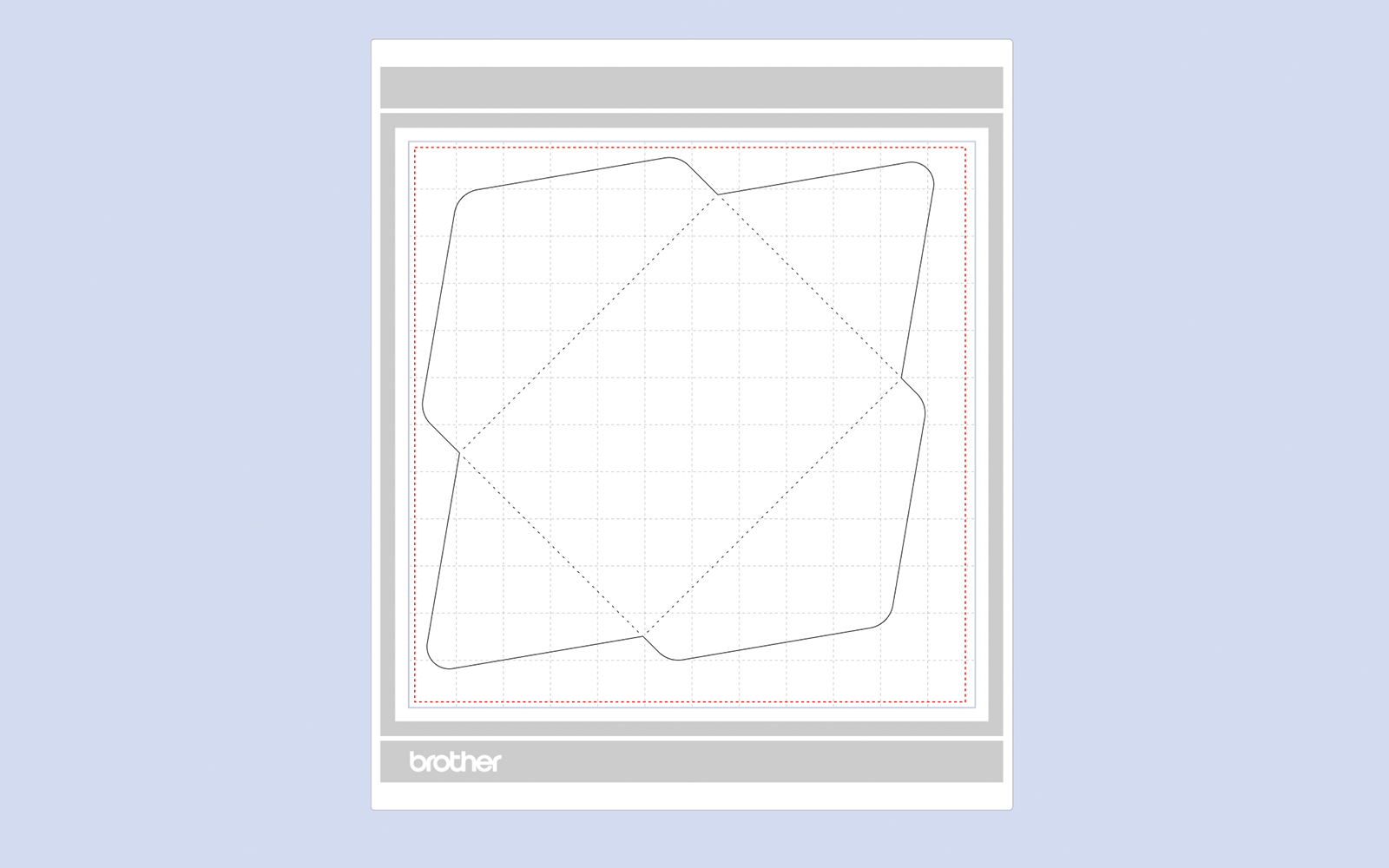
Hide and lock all layers except the one titled 3. Transfer this to your machine using the File>Export/Transfer FCM File menu option. Cut once from 12 x 12” cardstock.
Step 5
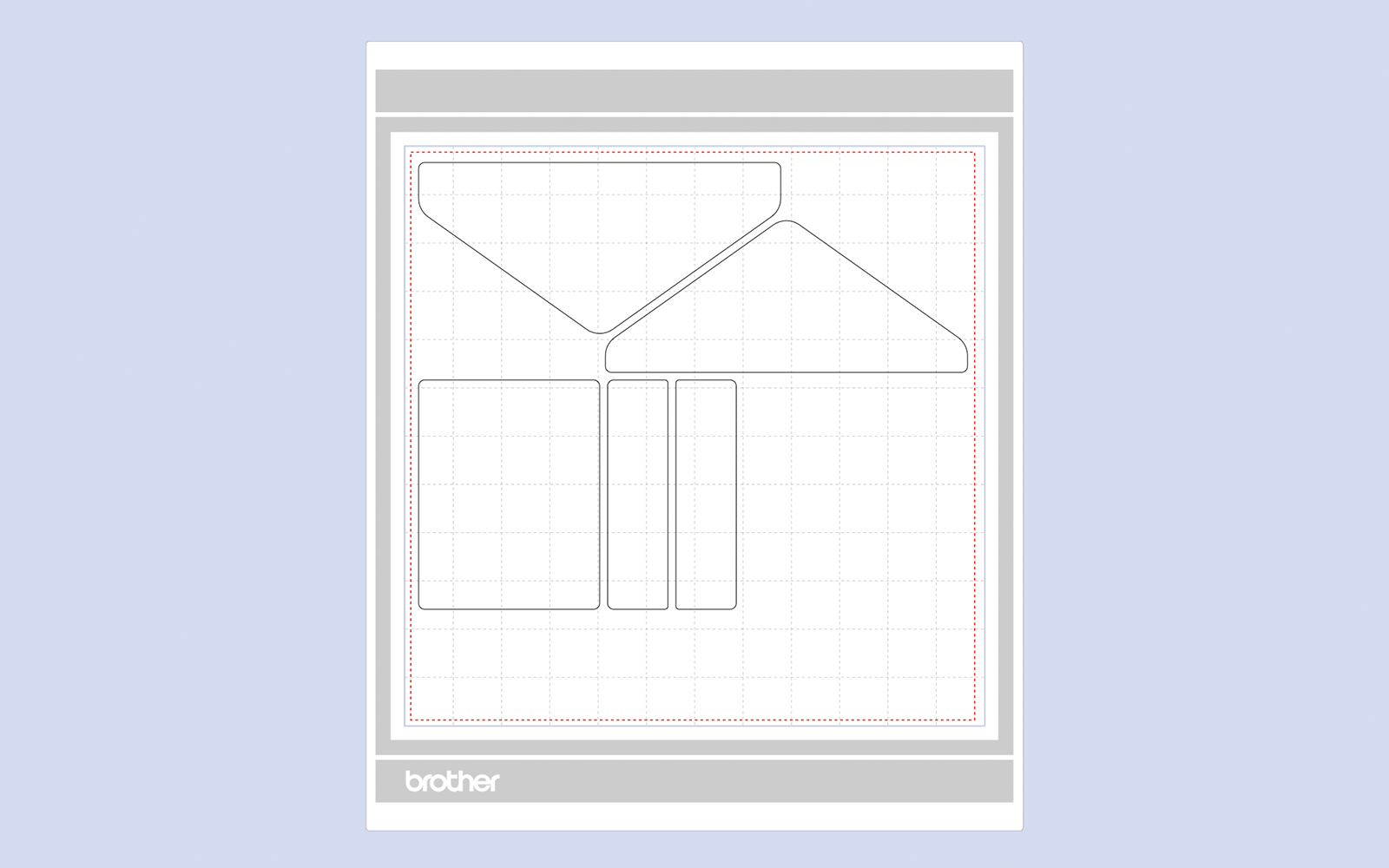
Hide and lock all layers except the one titled 4. Transfer this to your machine using the File>Export/Transfer FCM File menu option. Cut once from 12 x 12” cardstock.
Step 6
Assemble as shown in the video.
Tip: manually score over the dashed cut lines for a cleaner/sharper fold line.
Now you have made your bay window card, you can use your ScanNCut to embellish it and create the perfect card for your loved one.
If you make this, remember to tag in Brother on Instagram and Facebook, and myself on Facebook (and give us all a follow too)! You can also find Brother on Pinterest and YouTube for even more ScanNCut inspiration.