Festive funny faces


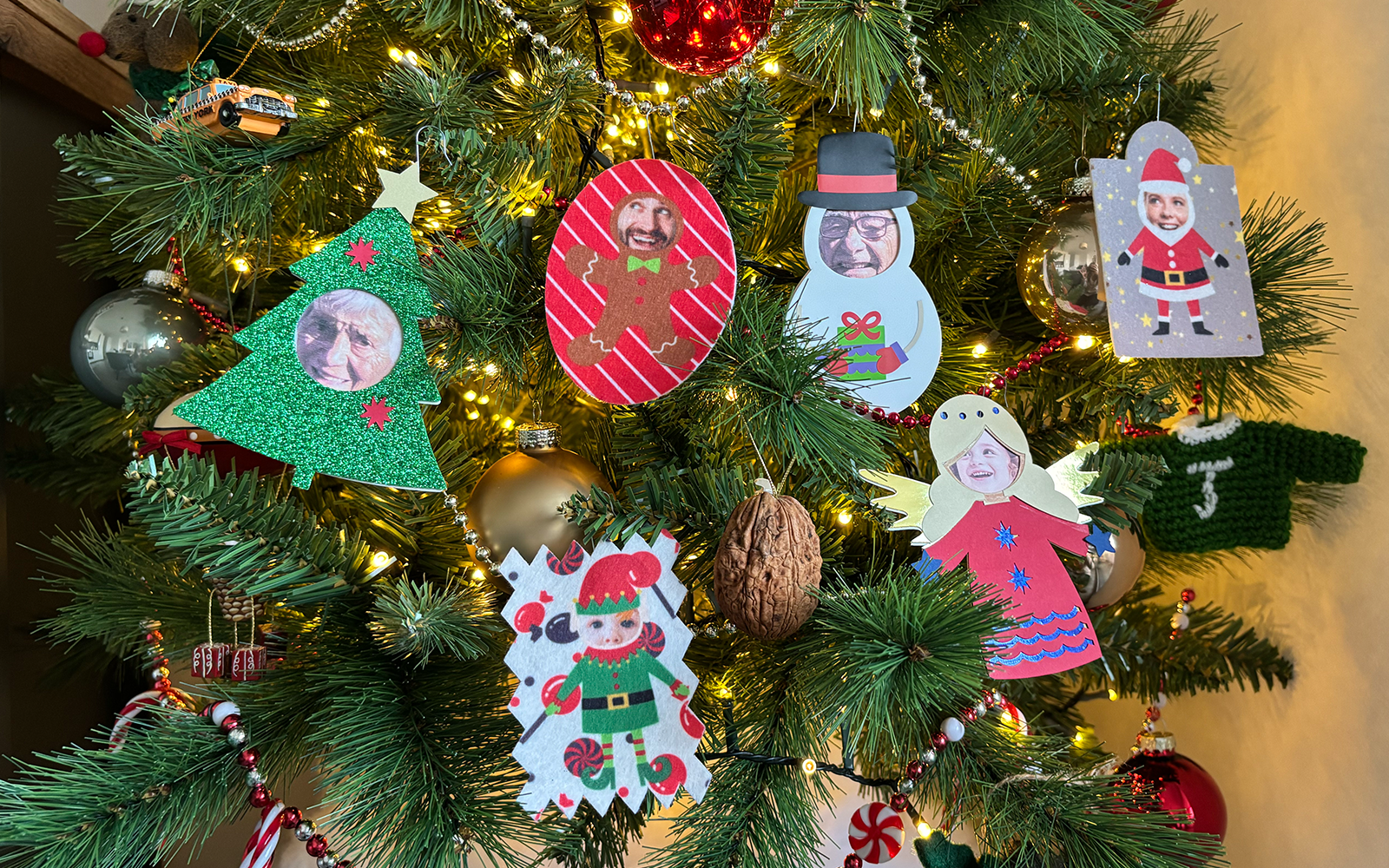
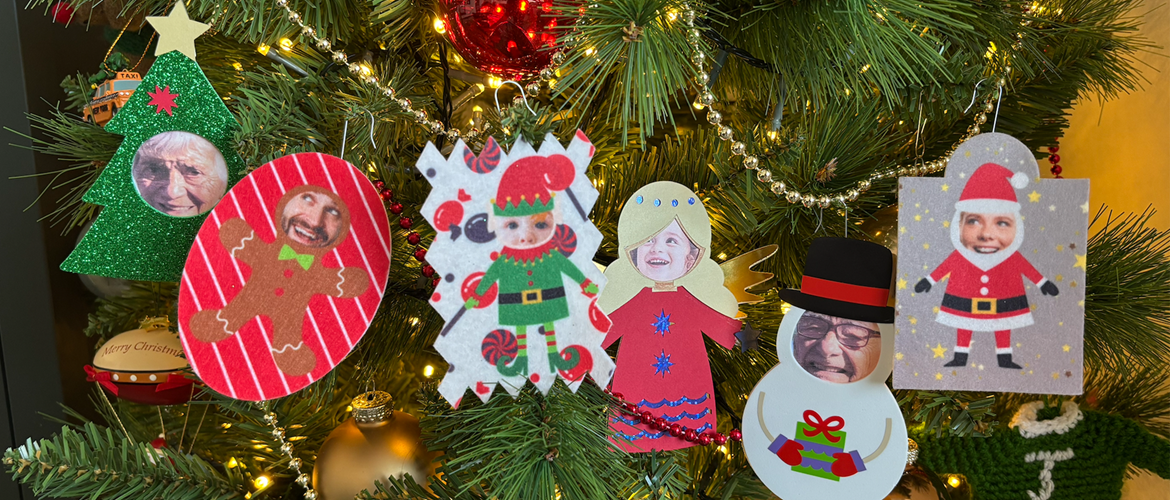
Spread smiles and Christmas joy with these sublimated and ScanNCut festive funny face Christmas designs.
As a personalised gift, place cards or Christmas decorations, these festive funny face designs will bring a smile to a loved one's face. It’s easy to create vibrant, personalised designs with your Brother Sublimation Printer or Brother ScanNCut and these festive Artspira funny face templates make it super easy.This project will show you how to add a photograph to our Artspira funny face design, print it on your Brother Sublimation printer, or cut them on your ScanNCut to make paper decorations.
Don’t worry, you don’t just have to make decorations, use the templates to print your festive funny faces onto a variety of other things – mugs, jigsaws, totes or even matching Christmas Day pyjamas. The only limit is your imagination!
If you don’t have Artspira yet, you can download it for free using the button below.
Materials needed
- Brother Sublimation Paper
- Brother SP1 Sublimation Ink
- White polyester felt for Christmas decorations (don’t use wool felt, only polyester will work for sublimation!) – you can use other sublimation blanks to create all kinds of gifts too
- Heat-proof tape
- Baking paper or heat proof paper
- Appliqué paper
- Christmas decoration hooks
- 12 x 12” cardstock in colours of your choice
- Foam and glitter foam
- Sticky vinyl (not HTV)
- Fun family photos you’re happy to cut up
- Glue
Equipment needed
- Brother Sublimation Printer SP1 and/or
- ScanNCut
- Low tack mat [CADXMATLOW12] – for cutting felt
- Rotary blade and blade holder – for cutting felt
- Standard mat [CAMATSTD12] – for cutting card, foam and vinyl
- Standard blade [CABLDP1] and blade holder [CAHLP1] or Standard auto-blade [CADXBLD1] and holder [CADXHLD1] – for cutting card, foam and vinyl
- Artspira app on your phone/tablet*
- Heat press or household iron
- Scissors
- Heat-proof mat
How to
Step 1
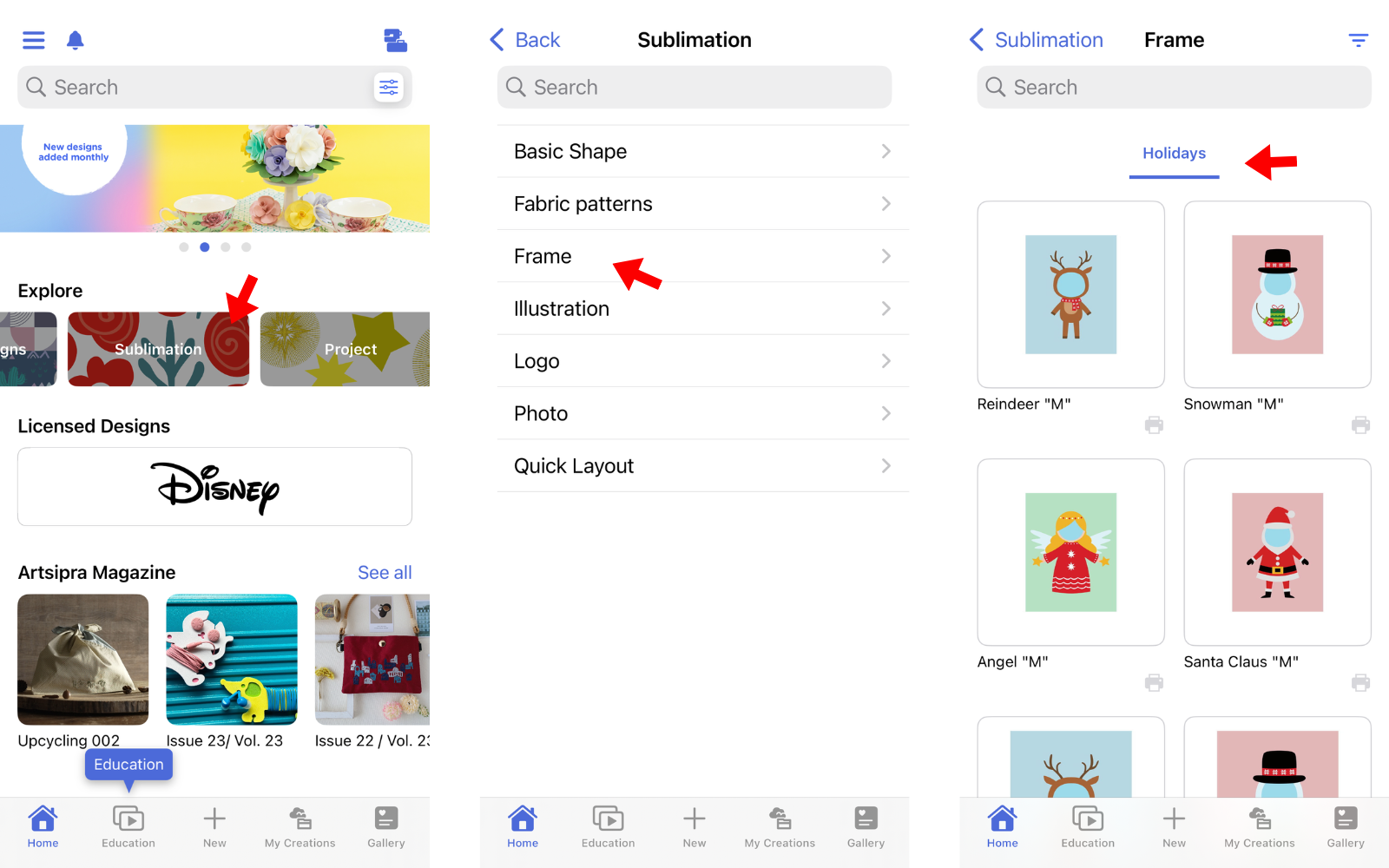
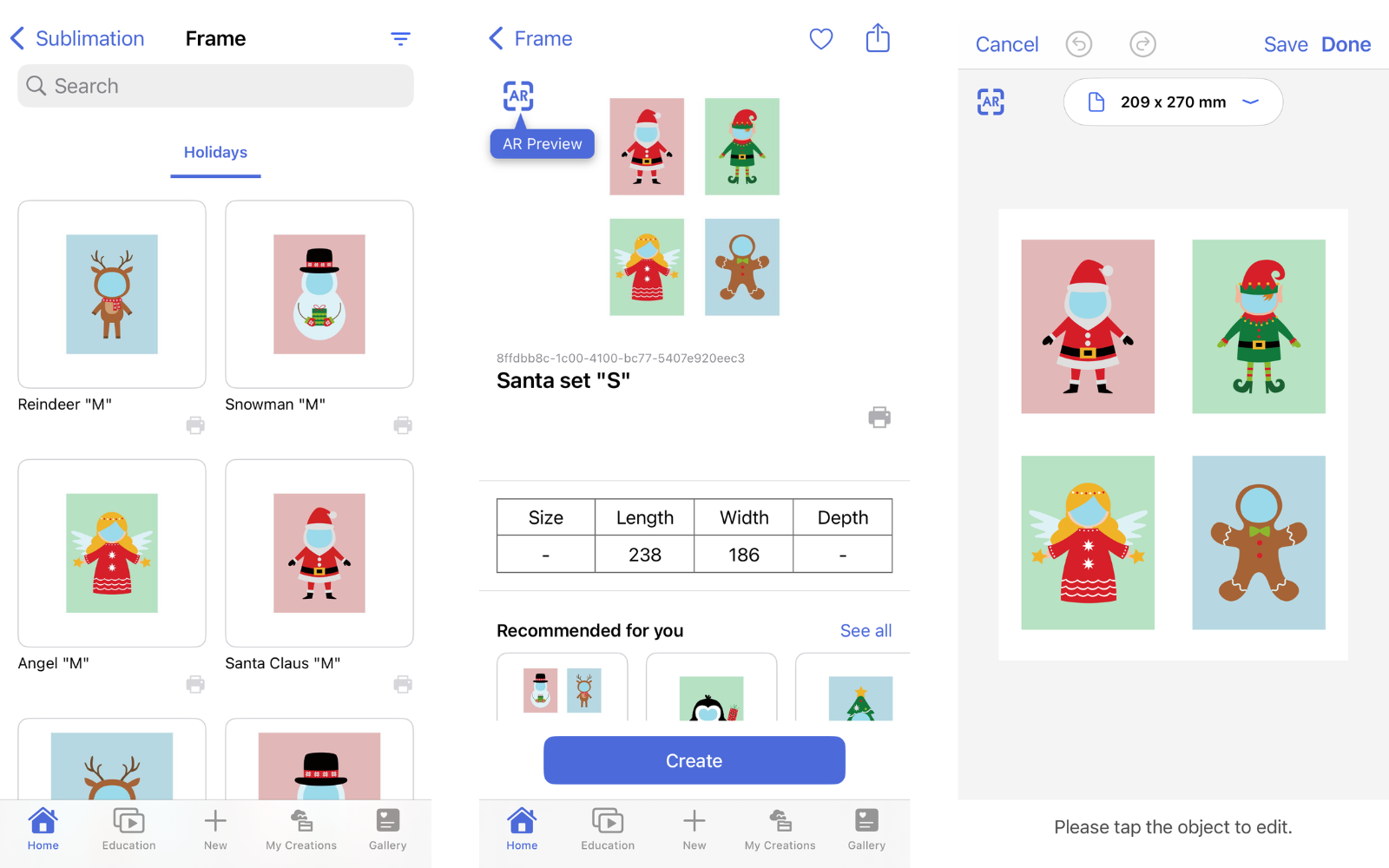
For the sublimated design templates: open the Artspira app and click ‘Sublimation’ in the explore section, select ‘Frame’ and then ‘Holidays’. Here you will be able to see all the festive funny face sublimation designs.
For the ScanNCut cutting patterns: open the Artspira app and click ‘Cutting Designs’ in the explore section, select ‘Holidays’ and then ‘Christmas’. Here you will find all the festive funny faces ScanNCut designs.
Step 2
Select the festive funny face design/s you want to sublimate or cut. You can choose a single image in small, medium or large, or create a set.
Once selected, click on ‘Create’.
Step 3
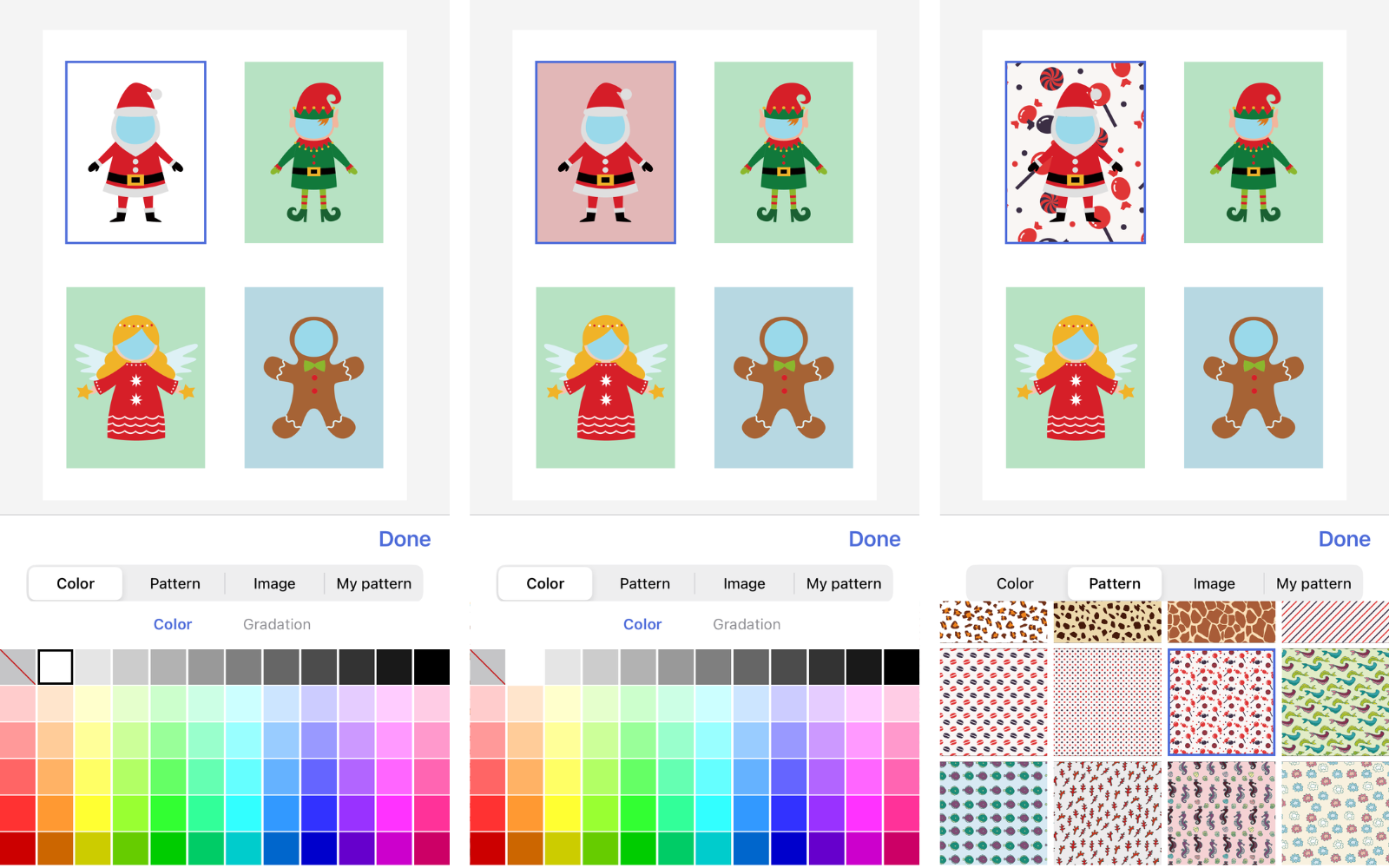
It’s time to customise your festive funny face sublimation designs! You can add vibrant colours or fun patterns to the background, or just leave the background blank. Just select the design elements and then ‘change’ and explore the colours and patterns.
Sublimation printer users: if you’re creating sublimation decorations, read on.
ScanNCut users: if you’re creating ScanNCut decorations, skip to Step 10.
Step 4
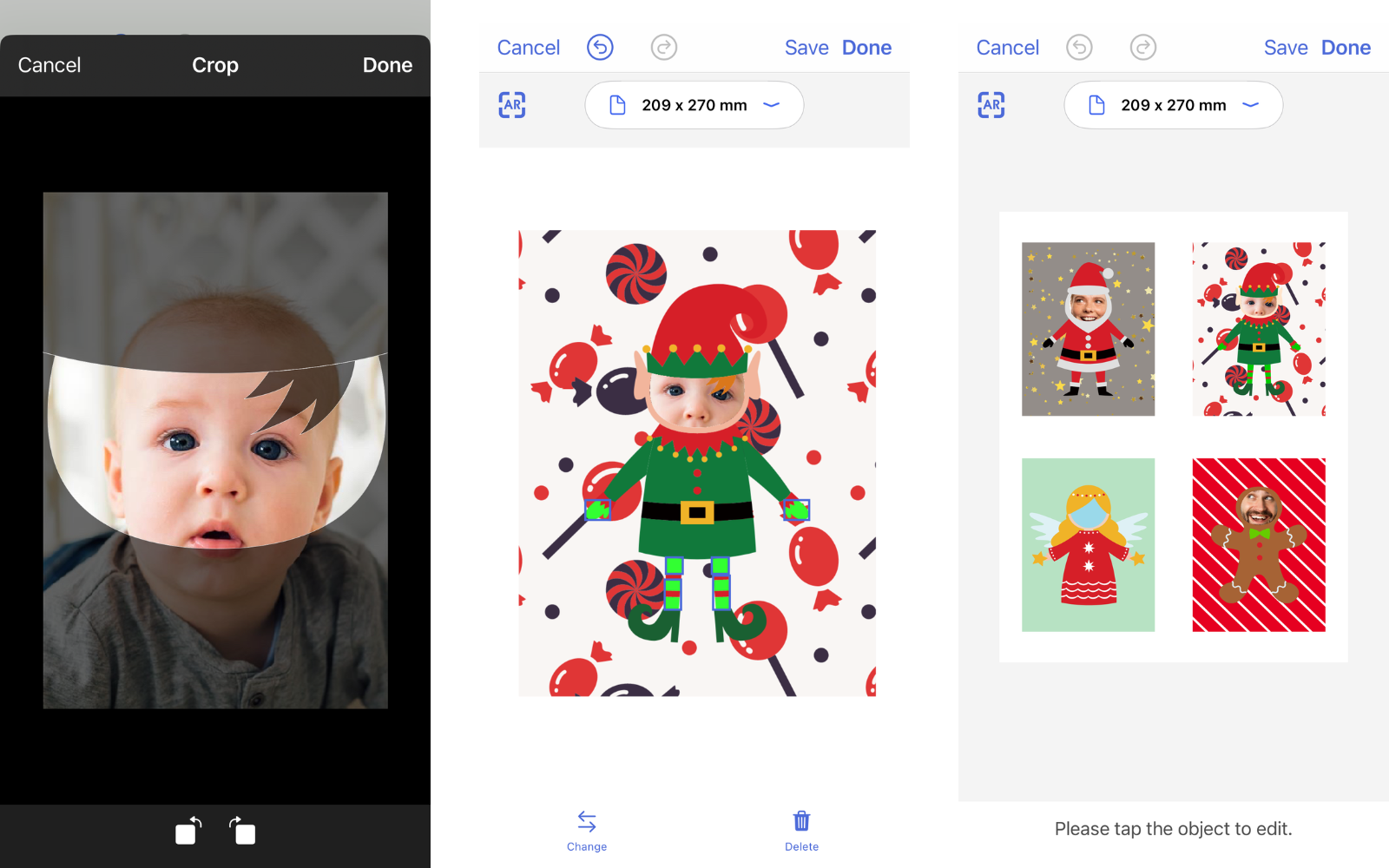
Sublimation: to add your photo, select the space where you want to add your image, select ‘change’ and then you’ll see your photo gallery under image. Select the image and edit to size.If you’re making these Christmas decorations on your ScanNCut, make sure to have the photographs handy.
Step 5
Once you’re done, select ‘Done’ and ‘Transfer’ to send the festive funny face design to your Brother Sublimation Printer or Brother ScanNCut.Step 6
Sublimation: print your chosen sublimation funny faces. Leave the print to cool for a few minutes to get the best results.Step 7
Sublimation: flip the printed sublimation paper over and place it on top of the white polyester felt. Fix it in place with heat-resistant tape.Note: the time and temperature of the heat press is determined by the fabric. Create a test first to ensure you get the best results.
Step 8
Sublimation: remove the transfer paper and cut out your sublimated funny face designs using scissors or your ScanNCut.Apply appliqué paper to another layer of white felt, remove the paper, place the glue side down onto the ScanNCut low tack mat and cut the same shape to create a back for your decoration. You could also cut these by hand if you do not have a ScanNCut.
Tip: if you’re using your Brother ScanNCut, use the low tack mat and rotary blade for the best finish.
Step 9
Sublimation: place the two pieces of felt together, place a hook between the layers and press together with an iron or heat press to activate the glue.Step 10
ScanNCut: you can cut more designs in one go by selecting ‘Design’, ‘Holidays’ and then ‘Christmas’ to make a whole group of funny faces.Step 11
Once you have selected all the designs you like, select ‘Done’.Step 12
Before you transfer to your machine, select cut options and then ‘By Color’ to organise the designs in one go.Select ‘Preview’ and then ‘Transfer’ to transfer to your machine.
Tip: use your ScanNCut’s built in scanner to cut multiple shapes from small pieces of foam, cardstock and vinyl. This saves you time and is a great way to use up small scraps from other projects!
Step 13
Once your pieces are cut out, glue the pieces in the correct order.Tip: don’t forget to add the hook before gluing the back piece on.
Step 14
There are loads of ways to go the extra mile with these festive funny face designs:
Use your Brother ScanNCut to create fun shapes around your sublimation designs – you can use the ScanNCut’s built-in designs, or find some fun cutting designs in the Brother Artspira design app.
- Instead of using hooks, you could string your funny faces together to hang as a banner or to wrap around the tree.
- Sublimate onto napkins to make fun place settings.
- Sublimate onto mugs, water bottles, jigsaws or many other things to give as thoughtful, personalised gifts.
- Add to matching pyjamas or t-shirts to start Christmas day the right way.
That’s it! Your funny faces designs are ready to surprise your loves ones for Christmas.